How to stop worrying about your WordPress site backup failing and start implementing new features with confidence. This complete guide to WordPress backup shows you how to backup WordPress site properly, build a WordPress disaster recovery plan, and restore WordPress from backup when disaster strikes.
Quick Answer: Best WordPress Backup Plugin
After testing all major WordPress backup plugins and performing 20+ site restorations, WPvivid is the best free WordPress backup plugin for most users. It offers:
- One-click restore: Get your site back online in minutes
- Automatic WordPress backup: Schedule daily/weekly backups
- Remote storage: Google Drive, Dropbox, Amazon S3, and more
- WordPress migration: Move sites between hosts easily
What You'll Learn
- Why website crashes are normal and backups are essential
- How to choose the best WordPress backup plugin for your needs
- Step-by-step: How to backup WordPress site with WPvivid
- How to restore WordPress from backup (and test it works!)
- Setting up automatic WordPress backup with remote storage
- WordPress migration and staging site creation
Why Website Crashes Are Normal: The Reality of WordPress Sites
Updates fail. Plugins conflict. Servers go down. Themes break layouts. Hackers exploit weak spots. You do not control when this happens. You control how fast you recover.
Most site owners panic. They search logs. They contact hosting. They wait. Hours pass. Sometimes days. Without a proper WordPress backup and restore system, recovery becomes guesswork.
A WordPress site backup removes fear. It turns a crash into a routine task. Restore. Check. Move on. That's why learning how to backup WordPress site properly is the most important skill for any website owner.
Critical Reality: According to WordPress.org statistics, over 43% of all websites run on WordPress. Yet most owners have never tested their backup restoration process. Don't be one of them.
Best WordPress Backup Plugin: Choosing the Right Solution
While there are many WordPress backup plugins available, not all are created equal. Some are lightweight and reliable, while others can slow down your site or cause conflicts. Choosing the best WordPress backup plugin is crucial for effective backup management and peace of mind.
WordPress Backup Plugins Tested
I've tried all of them:
- UpdraftPlus: Popular and feature-rich, but interface can be overwhelming for beginners
- Backuply: Good basic features, limited remote storage options in free version
- Jetpack VaultPress Backup: Excellent but paid-only for backups, part of larger Jetpack suite
- BackWPup: Solid option but restoration process is more complex
- Duplicator: Best for WordPress migration, less ideal for regular backups
- All-in-One WP Migration: Great for migrations, 512MB file size limit on free version
- WPvivid: Winner! Perfect balance of features, reliability, and ease of use
After 20+ website restorations, I can confidently say that WPvivid is the best WordPress backup plugin free option for most users. It strikes the perfect balance between comprehensive protection and ease of use, without the complexity that makes you need a computer science degree to configure it properly.
WPvivid Features: Complete WordPress Backup Solution
What makes WPvivid the best free WordPress backup plugin:
- Full Website Backups: Complete WordPress site backup including database, themes, plugins, and media files
- Database-Only Backups: Backup WordPress database separately for faster, smaller backups
- Files-Only Backups: Backup themes, plugins, and uploads without the database
- Manual Backups On Demand: Create WordPress site backup with one click whenever needed
- Automatic Scheduled Backups: Set up automatic WordPress backup daily, weekly, or monthly
- One-Click Restore: Restore WordPress from backup in minutes, not hours
- WordPress Migration: Move sites between hosts easily with complete WordPress migration
- Staging Site Creation: Test updates safely before applying to live site
- Remote Storage Support: Google Drive, Dropbox, Microsoft OneDrive, Amazon S3, FTP, SFTP
- Backup Splitting: Automatically splits large backups to avoid server limits
- Incremental Backups (Pro): Save server resources by only backing up changes
How to Backup WordPress Site: Your First Backup with WPvivid
Despite all of WPvivid's capabilities, you need to verify that it works correctly for YOUR specific setup. Every website is unique — different themes, plugins, hosting environments, and configurations. Backups mean nothing if restore fails. Never trust blindly — test once, then relax.
Before You Start
- Time required: 10-30 minutes (depending on site size)
- WordPress admin access needed
- Sufficient disk space for backup file
- Optional: Test site for restoration testing
Step-by-Step: Creating Your First WordPress Backup
-
Step 1: Install WPvivid Plugin
- Go to WordPress Dashboard → Plugins → Add New
- Search for "WPvivid Backup Plugin"
- Click "Install Now" then "Activate"
-
Step 2: Navigate to WPvivid Backup
- In WordPress dashboard, find "WPvivid Backup" in left menu
- Click on "Backup & Restore" tab
-
Step 3: Configure Backup Settings
- Choose "Database + Files" for complete WordPress site backup
- Select "Save to Local" as destination
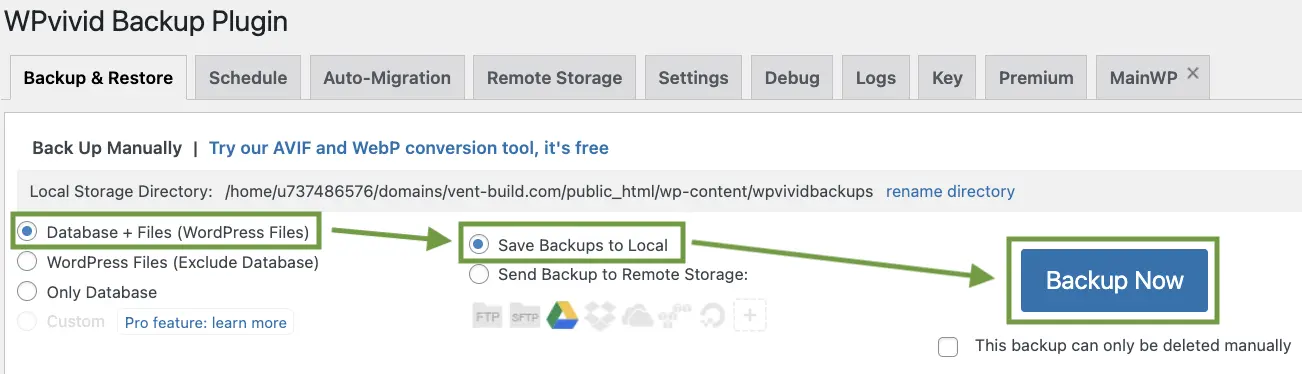
WPvivid backup interface - select "Database + Files" and "Save to Local" for your first WordPress site backup -
Step 4: Create the Backup
- Click the blue "Backup Now" button
- Wait for the backup process to complete (progress bar will show status)
- You'll see "Backup completed successfully" message
-
Step 5: Download Your Backup
- Reload the page after backup completes
- Click "Scan uploaded backup or received backup" button
- Click "Download" to save backup file to your computer
Important: Always download and store backups off-server. If your server crashes, local-only backups are useless. Remote storage is essential for true protection.
How to Restore WordPress from Backup: Testing Your Backup Works
Congratulations! You've successfully created your first WordPress site backup. Now comes the critical part: testing that you can restore WordPress from backup. This is where most people fail—they create backups but never verify they work until disaster strikes.
"An untested backup is the same as no backup at all."
Complete WordPress Backup and Restore Test Process
Testing your WordPress backup and restore process ensures you can actually recover your site when needed:
-
Step 1: Create a Test WordPress Site
- Set up a blank WordPress installation on a subdomain (e.g., test.yoursite.com)
- Or use a local development environment like XAMPP or Local by Flywheel
- Or use your hosting's staging site feature if available
-
Step 2: Install WPvivid on Test Site
- Install and activate WPvivid plugin on the test site
- Navigate to WPvivid → Backup & Restore tab
-
Step 3: Upload Your Backup File
- Scroll down below "Backup Now" button to find "Upload" section
- Click "Upload" and select your backup file from your computer
- Wait for "The upload has completed" message, then click "OK"
-
Step 4: Locate Uploaded Backup
- Click the "Backups" button (next to Upload button)
- You should see your uploaded backup listed
-
Step 5: Restore WordPress Website from Backup
- Click "Restore" button next to your backup
- Confirm by clicking "Restore" again in the popup
- Click "OK" to proceed

WPvivid restore interface - click "Restore" twice to restore WordPress website from backup -
Step 6: Wait for Restoration to Complete
- Critical: Don't close browser or switch tabs during restoration
- Process can take 2-15 minutes depending on site size
- You'll see "Restore completed successfully" when finished
- Click "OK" to dismiss the message
-
Step 7: Verify the Restoration
- Reload the page (you may need to log in again)
- Visit different pages and sections of your website
- Check that all images, pages, and functionality work
- Verify plugins and themes are intact
- Test forms, shopping cart, or any custom features
Perfect! You just successfully completed a full backup and restore test. This confirms that your backups are not only created but also restorable.
Common Backup Restoration Issues I've Encountered
This entire test process takes 5-60 minutes (depending on the size of your site) and is worth every second. I test my backups every couple of months, and there have been times when:
- File corrupted during transfer - Backup downloaded fine but wouldn't restore
- PHP timeout during restore - Server couldn't handle large backup in one go
- Incompatible plugin files - Old plugin versions conflicting with new WordPress
- Invalid backup file format - Backup created on different server architecture
- Database charset mismatch - UTF-8 vs UTF8MB4 encoding issues
- File permission problems - Restored files had wrong ownership
That's why for every website I have/make - I create a test website to verify the backup works. For example:
- This Website has a copy on a test.kolodych.com
- Bubacatcity.com has a copy on a Test Server 1 (Bubacat)
- Vent Build website has a copy on a test.vent-build.com
- And you can be sure, that all other websites as well.
This practice gives me peace of mind and ensures that my clients' websites are always protected and recoverable. Knowing how to restore WordPress website before you need it is like having insurance — you hope you never use it, but you're glad it's there.

WordPress Disaster Recovery Plan: Steps to Take Before and After a Crash
A WordPress disaster recovery plan is a written list of actions you take before a crash happens and immediately after one does. Most site owners skip the "before" part. That's why they spend hours panicking instead of following a checklist. If you've already set up WPvivid and tested a restore, you've done the hard part. Now document it.
"A disaster recovery plan you write today takes 30 minutes. A recovery without one takes 30 hours."
Before the Crash: What to Set Up in Advance
Your WordPress disaster recovery starts long before anything breaks. Run through this checklist once and keep it somewhere you can find at 2am:
-
Step 1: Write Down All Credentials
- Hosting control panel login (cPanel, Hestia, Plesk, etc.)
- FTP or SFTP credentials for direct file access
- Database name, username, and password (from wp-config.php)
- Domain registrar login in case DNS needs to change
- WordPress admin URL and login (especially if you use a custom path)
-
Step 2: Confirm Remote Backups Are Working
- Open WPvivid and verify the last scheduled backup completed successfully
- Check your remote storage (Google Drive, Dropbox, S3) and confirm the file is there
- If your last backup is older than 7 days, run a manual backup now
-
Step 3: Keep a Staging or Test Site Ready
- You already have this from the restore test section above
- If it's been more than 3 months, rebuild it so it matches your current server environment
- A staging site cuts your recovery time in half because you already know the restore works
-
Step 4: Document Your Server Environment
- PHP version (find it under Hosting panel or run php -v via SSH)
- MySQL or MariaDB version
- Active plugins list — export it or screenshot it
- Active theme name and version
- Nginx or Apache config if you've made custom changes
-
Step 5: Set Up Uptime Monitoring
- Use a free tool like UptimeRobot to ping your site every 5 minutes
- Set alerts to your email and Telegram so you know within minutes when the site goes down
- Without monitoring, you may learn about a crash from a client or Google Search Console, not yourself
After the Crash: Step-by-Step WordPress Recovery Process
Your site is down. Follow these steps in order. Don't skip ahead:
-
Step 1: Assess What Actually Happened
- Is the site returning a white screen, 500 error, 403, or database connection error?
- Check your hosting panel — is the server itself running?
- Check if only WordPress is broken or if the whole server is down
- Look at your error logs: /var/log/nginx/error.log or via hosting panel
- Don't restore yet if the problem might be a single plugin or a bad update
-
Step 2: Try a Quick Fix First
- White screen or fatal error: rename the plugins folder via FTP to /plugins_disabled
- If site comes back, rename it back and deactivate plugins one by one to find the culprit
- Database error: check wp-config.php credentials match your actual database
- If a quick fix resolves it, skip the full restore
-
Step 3: Decide Whether to Restore from Backup
- If the site is hacked, corrupted, or the quick fix didn't work: restore
- Choose the most recent backup that predates the problem
- Download it from remote storage to your local machine first
- Never restore directly from a backup made after the crash — it may include the broken state
-
Step 4: Restore WordPress from Backup
- Follow the full restore process covered in the section above
- Use your staging environment first if you have time — confirm the backup restores cleanly
- Then restore to the live site
- Do not close the browser during the restore process
-
Step 5: Verify the Recovery
- Visit the homepage, a post, a product page, and the admin panel
- Test any forms, checkout flows, or login flows
- Check Google Search Console for crawl errors in the next 24 hours
- Run your uptime monitor manually to confirm the site is stable
-
Step 6: Find the Cause and Prevent It
- Check server logs for the exact time the crash started
- Cross-reference with any plugin updates, WordPress core updates, or theme changes made that day
- If hacked: change all passwords, scan with Wordfence or Sucuri, check for new admin users
- Run a manual backup immediately after recovery so you have a clean post-recovery snapshot
Most Common WordPress Crash Causes I've Seen
After managing and recovering multiple WordPress sites, these are the situations that actually send sites down. Knowing them in advance cuts your WordPress disaster recovery time significantly:
- Bad plugin update — A plugin update introduces a PHP fatal error that breaks the whole site
- WordPress core update conflict — Core update makes an old theme or plugin incompatible
- Hosting server failure — Server hardware issue or provider outage, nothing you can control
- Hack or malware injection — Attacker modifies files or creates a backdoor admin account
- Disk quota exceeded — Log files or media uploads fill the disk and MySQL stops writing
- Accidental file deletion — Manual FTP work or cleanup script removes the wrong file
- SSL certificate expiry — Browser blocks the site entirely, looks like a crash to visitors
Most of these are recoverable in under 30 minutes if your backups are working and your credentials are documented. The plan above turns a potential disaster into a routine fix. If you need help setting this up or recovering a broken site, check my WordPress developer services and pricing.
Setting Up Remote Storage for WordPress Backups
I hope you now understand the importance of having your WordPress site backup NOT in the same place as your website. If this WordPress backup and restore process using WPvivid worked out well for your website - I can share with you my settings and best practices for even smoother and more reliable backups.
Configuring Remote Storage for WordPress Backups
-
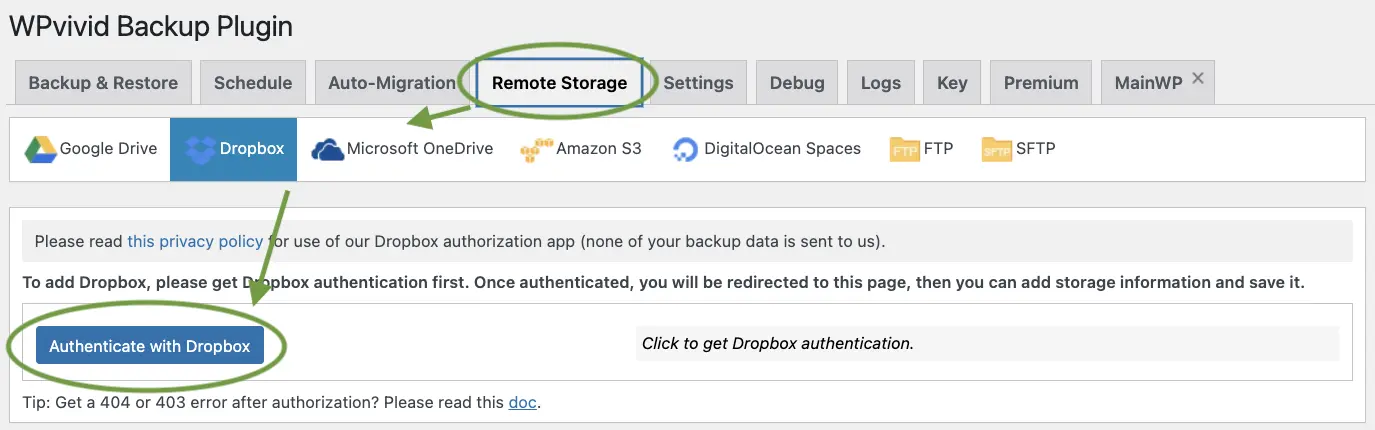
Step 1: Navigate to Remote Storage Tab
- Go to WPvivid → Remote Storage
- You'll see options for various cloud services
-
Step 2: Choose Your Cloud Service
- Google Drive: 15GB free, easy setup
- Dropbox: 2GB free, reliable
- Microsoft OneDrive: 5GB free, great for Microsoft users
- Amazon S3: Pay-as-you-go, professional-grade
- FTP/SFTP: Use any FTP server
-
Step 3: Authenticate Your Account
- Click on your chosen cloud service
- Click "Authenticate" button
- Log in to your cloud account when prompted
- Grant WPvivid permission to access your storage
-
Step 4: Name Your Storage Location
- Give it a descriptive name (e.g., "My Site - Google Drive")
- This helps when you have multiple sites or storage locations
- Click "Save" to complete setup
Best Practices for Remote Storage
- Use at least TWO different remote storage locations for critical sites
- Keep one local backup AND one remote backup minimum
- Test downloading backups from remote storage periodically
- Monitor your cloud storage space to avoid hitting limits
- Set up folder organization in your cloud storage (e.g., /backups/site-name/)
Automatic WordPress Backup: Set It and Forget It
Now that you have remote storage configured, let's set up automatic WordPress backup so you never have to remember to do it manually. This is what separates professionals from amateurs — automated, tested backups that run whether you remember or not.
Configuring Automatic WordPress Backup Schedule
-
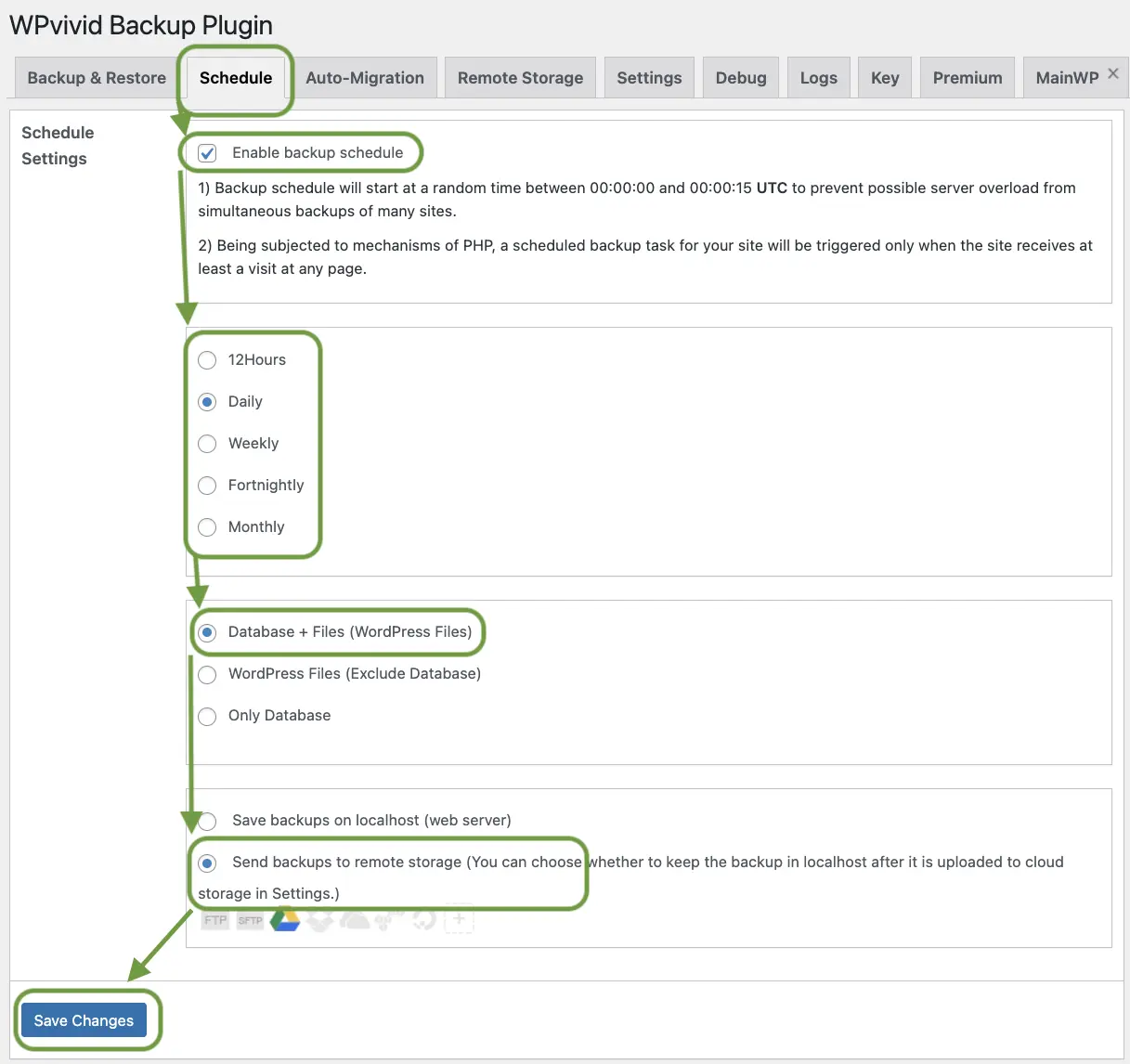
Step 1: Navigate to Schedule Tab
- Go to WPvivid → Schedule
- This is where you configure automatic backups
-
Step 2: Enable Backup Schedule
- Tick the checkbox "Enable backup schedule"
- Choose backup frequency: daily, weekly, or monthly
- Recommendation: Daily for active sites, weekly for static sites
-
Step 3: Select Backup Type
- Choose "Database + Files" for complete protection
- Select "Send backups to remote storage"
- Your authenticated cloud service icon should be active (e.g., Google Drive icon)
-
Step 4: Save Your Schedule
- Most important: Click "Save Changes"!
- Many people forget this step and wonder why backups don't run.
Recommended Backup Schedule by Site Type
- E-commerce Sites: Daily backups (or multiple times per day)
- Active Blogs: Daily backups before publishing
- Business Sites: Weekly backups minimum
- Static/Portfolio Sites: Weekly or monthly backups
- Before Updates: Always create manual backup first
Optimizing WPvivid General Settings
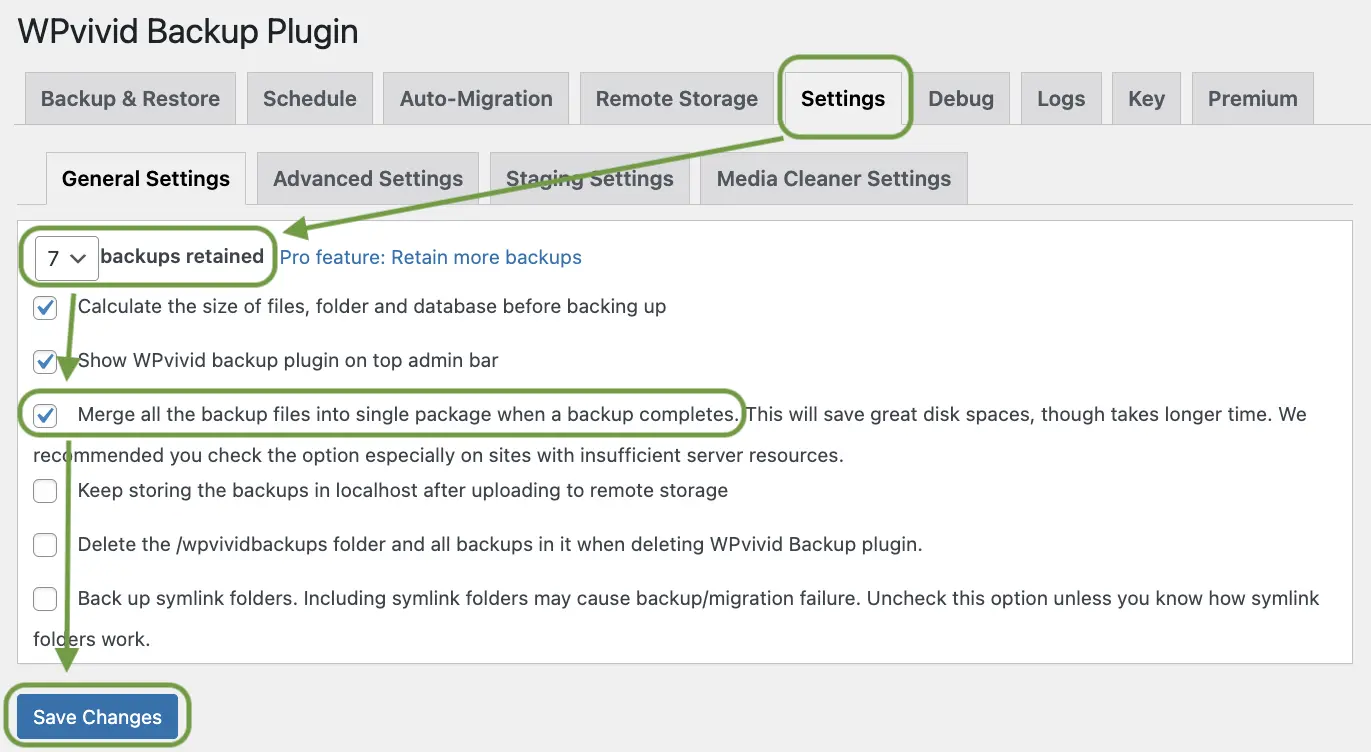
One last step to optimize your WordPress backup plugin configuration:
- Navigate to Settings: Go to WPvivid → Settings → General Settings
-
Set Backup Retention: Set "Maximum number of backups retained" to 7
- This keeps one week of rolling backups
- Prevents your storage from filling up
- Gives you multiple restore points
-
Enable Backup Merging: Tick "Merge all the backup files into single package"
- Makes downloading and restoration easier
- Prevents issues with split backup files
- Recommended for most sites
- Save Settings: Click "Save" at the bottom
How to Backup a WordPress Site: Complete Step-by-Step Guide
Learning how to backup a WordPress site doesn't require technical expertise. With the right plugin and a few minutes, you can create a full backup of your website including the database, themes, plugins, and media files. Here is the exact process I follow for every site I manage.
Quick WordPress Backup Process
-
Step 1: Install WPvivid from the Plugin Directory
- Go to Plugins → Add New in your WordPress dashboard
- Search for "WPvivid Backup Plugin"
- Click Install Now, then Activate
-
Step 2: Create Your First Backup
- Navigate to WPvivid → Backup & Restore
- Select "Database + Files" for a complete WordPress backup
- Choose "Save to Local" for the initial backup
- Click "Backup Now" and wait for the progress bar to finish
-
Step 3: Download and Store Your Backup
- After completion, reload the page
- Click "Scan uploaded backup or received backup"
- Download the backup file to your computer as an off-site copy
-
Step 4: Test That the Backup Restores
- Set up a staging site or local WordPress environment
- Install WPvivid on the test site
- Upload and restore the backup file
- Verify all pages, images, forms, and functionality work correctly
-
Step 5: Set Up Automatic Backups
- Go to WPvivid → Schedule
- Enable the schedule and set your preferred frequency
- Select "Database + Files" and enable remote storage
- Click "Save Changes" — your WordPress backup now runs automatically
That's it. You now know how to backup a WordPress site. The entire process takes under 15 minutes for setup and 5-20 minutes for the actual backup depending on your site size. The key is doing it once, testing it, and then letting automation handle it going forward.
WordPress Disaster Recovery: Restore-Procedure Checklist
A WordPress disaster recovery plan is useless if you can't find it at 2am when your site is down. This restore-procedure checklist gives you the exact steps to follow from the moment you discover a problem to the moment your site is back online. Print it, bookmark it, or save it somewhere outside your website.
WordPress Disaster Recovery Restore Checklist
- Confirm the problem: Check if the site is truly down or if it's a local browser/ISP issue — try a different device and network
- Identify the error type: White screen of death, 500 error, database connection error, 403 forbidden, or hacked content
- Check hosting status: Log into your hosting panel to verify the server is running and check for known outages
- Try a quick fix first: Rename the plugins folder via FTP to rule out a bad plugin before doing a full restore
- Download the last clean backup: Retrieve your most recent pre-crash backup from remote storage — never restore from a backup made after the problem started
- Set up a clean restore environment: Use your staging site, a subdomain, or a local WordPress installation to test the restore before touching the live site
- Run the restore: Install WPvivid on the clean environment, upload the backup file, click Restore, and wait without closing the browser
- Verify everything: Check homepage, inner pages, media, forms, login, admin dashboard, and any custom functionality
- Restore to live: Once verified, repeat the restore process on the live server
- Post-recovery scan: Change all passwords, scan for malware with Wordfence or Sucuri, and check for unauthorized admin accounts
- Take a post-recovery snapshot: Create a fresh manual backup immediately after recovery as a clean baseline
- Document what happened: Note the cause, time, and fix for your records — this speeds up future recovery
Following this checklist, most WordPress sites can be restored from backup in under 30 minutes. The key is preparation — having your backups tested, your credentials documented, and your staging environment ready before you need them. That's what separates a routine fix from a multi-hour panic.
Hosting Backup Verification and Restore-Test Guidance
Most managed WordPress hosts — SiteGround, Kinsta, WP Engine, Cloudways — offer built-in backup features. While these are convenient as a supplementary layer, you should never rely on them as your only WordPress backup strategy. Here's why, and how to verify they actually work.
How to Verify Your Hosting Backups
-
Step 1: Check Backup Frequency in Your Hosting Panel
- Log into your hosting dashboard (cPanel, SiteGround Tools, Kinsta dashboard, etc.)
- Navigate to the Backups or Daily Backups section
- Confirm backups are being created on the expected schedule
- Note how many days of backup history are retained — most hosts keep 14-30 days
-
Step 2: Download a Backup File
- Select a recent backup and attempt to download the database and files separately
- If the host only allows restore (not download), that's a red flag for true disaster recovery
- A backup you can't download outside the hosting panel is a single point of failure
-
Step 3: Perform a Test Restore to Staging
- Use your host's staging or cloning feature to restore a backup to a test environment
- Verify the restored site loads, all pages work, and the database is intact
- Test forms, login, and any dynamic functionality
- If the host doesn't offer staging, restore to a subdomain with a fresh WordPress install
-
Step 4: Test the Restore-Download-Restore Cycle
- Download a backup from the hosting panel
- Upload it to a completely separate server or local environment
- Restore it with WPvivid or manually
- This tests the full chain — not just the host's internal backup system
-
Step 5: Document What the Host Backup Covers
- Some hosts only back up the database, not files — check their documentation
- Some exclude large media files or specific plugin directories
- Know exactly what you're getting so there are no surprises during recovery
Important: Host backups are a safety net, not a backup strategy. If your hosting account is suspended, billing fails, or the host has a system-wide outage, your "backups" may be inaccessible when you need them most. Always maintain your own independent backups with WPvivid and remote storage.
Google Drive Backup for WordPress: WPvivid Remote Storage Setup
Storing backups on Google Drive gives you 15GB of free storage, automatic syncing, and the peace of mind that comes with having your WordPress backup files in a completely separate location from your hosting server. Here's exactly how to set it up with WPvivid.
Setting Up Google Drive Remote Storage with WPvivid
-
Step 1: Create a Dedicated Google Drive Folder
- Log into Google Drive (drive.google.com)
- Create a new folder called "WordPress Backups" or "WordPress Backups - YourSiteName"
- Create subfolders for each site if you manage multiple websites
- This keeps backups organized and makes it easy to find the right file during recovery
-
Step 2: Open WPvivid Remote Storage Settings
- In your WordPress dashboard, go to WPvivid → Remote Storage
- Find "Google Drive" in the list of available storage providers
- Click on it to expand the authentication section
-
Step 3: Authenticate WPvivid with Google Drive
- Click the "Authenticate" button — you'll be redirected to Google's login page
- Select or log into the Google account where you created the backup folder
- Grant WPvivid permission to access Google Drive
- You'll be redirected back to WordPress — the connection is now active
-
Step 4: Name and Configure the Storage Location
- Give the storage connection a descriptive name (e.g., "My Site - Google Drive")
- Optionally select the specific folder in your Drive where backups should be saved
- Click "Save" to store the remote storage configuration
-
Step 5: Enable Remote Storage in Your Backup Schedule
- Go to WPvivid → Schedule (or Backup & Restore for manual backups)
- Enable "Send backups to remote storage"
- Ensure your Google Drive connection is selected and active
- Save your schedule — all future backups will now go to Google Drive automatically
-
Step 6: Test the Full Remote Backup Cycle
- Create a manual backup with remote storage enabled
- Verify the backup file appears in your Google Drive folder within a few minutes
- Download the backup file from Google Drive to your computer
- Upload and restore it on a staging site to confirm the complete cycle works
Google Drive Backup Best Practices
- Keep backup files organized by site name and date — don't let them pile up in the root folder
- Monitor your Google Drive storage — 15GB fills up fast with full site backups
- Set up backup retention in WPvivid to automatically delete old backups and save Drive space
- For critical sites, use a secondary remote storage provider (Dropbox or Amazon S3) as well
- Periodically download a backup from Google Drive and verify it restores correctly on a staging site
Backup WordPress FAQ: Quick Answers
- How often should I back up WordPress?
-
For most WordPress sites, daily backups are recommended. If you run an e-commerce store or publish content frequently, consider backing up twice a day. Static sites or portfolios can get by with weekly backups. The critical rule: always create a manual backup before updating WordPress core, themes, or plugins. Use WPvivid's schedule feature to automate this so you never forget.
- How do I restore a WordPress backup?
-
With WPvivid, restoring a WordPress backup takes just a few clicks. Go to WPvivid → Backup & Restore, locate your backup file in the list, and click "Restore." Confirm the restore in the popup and wait without closing the browser. The process takes 5-20 minutes depending on your site size. For safety, always test the restore on a staging site first before restoring to your live website.
- Where to store backups?
-
Store your WordPress backups in at least two locations: a remote cloud service like Google Drive, Dropbox, or Amazon S3, and a local download on your personal computer. Never rely on server-only backups — if the server crashes, you lose both the site and the backup. For critical websites, use two different cloud providers for true redundancy. WPvivid supports Google Drive, Dropbox, OneDrive, Amazon S3, FTP, and SFTP for remote storage.
Frequently Asked Questions About WordPress Backups
- How often should I backup my WordPress site?
-
For most websites, daily automatic WordPress backup is recommended. E-commerce sites or sites with frequent content updates should backup multiple times per day. Blogs with infrequent updates can use weekly backups. The key is backing up before any major changes—always create a manual backup before updating themes, plugins, or WordPress core.
- Why should I test my WordPress backups?
-
Testing your WordPress backup and restore process ensures they actually work when disaster strikes. Many website owners discover their backups are corrupted, incomplete, or incompatible only after they desperately need them. Testing on a staging site verifies your backup restoration process works correctly. An untested backup is the same as having no backup at all.
- Is WPvivid free? What about WPvivid Backup Pro?
-
Yes, WPvivid has a robust free version that includes full site backups, scheduling, cloud storage integration, and one-click restore — everything most users need. The WPvivid Backup Pro version ($79/year for single site) adds incremental backups, unused image cleaner, staging sites, white label options, and priority support. For most small to medium sites, the free version is sufficient.
- What's the best WordPress backup plugin free option?
-
Based on testing all major options, WPvivid is the best free WordPress backup plugin for most users. It offers the best balance of features, ease of use, and reliability. UpdraftPlus is also excellent but has a steeper learning curve. Duplicator is best specifically for WordPress migration rather than regular backups. Avoid plugins that limit backup size or require paid upgrades for essential features like remote storage.
- How do I backup WordPress database separately?
-
To backup WordPress database only, use WPvivid and select "Database" instead of "Database + Files" when creating a backup. This creates a smaller, faster backup containing only your posts, pages, settings, and user data. Database-only backups are useful for quick daily backups between full site backups, or before making configuration changes that don't affect files.
- Can I use WPvivid for WordPress migration to a new host?
-
Yes! WPvivid is excellent for WordPress migration. Create a full backup on your old host, download it, then upload and restore it on your new host using WPvivid. The plugin handles URL changes and database updates automatically. This makes moving WordPress sites between hosts simple and reliable without manual database editing or file transfers.
- Where should I store my WordPress backups?
-
Never store backups ONLY on the same server as your website. If the server crashes, you lose both. Best practice: Store backups in at least two locations — one remote cloud service (Google Drive, Dropbox, Amazon S3) and one local download on your computer. For critical sites, use multiple remote storage locations. Always test that you can download and restore from your remote storage.
- How long does it take to restore WordPress from backup?
-
Using WPvivid, most sites restore WordPress from backup in 5-20 minutes. Small sites (under 500MB) restore in 5-10 minutes. Medium sites (500MB-2GB) take 10-20 minutes. Large sites (2GB+) may take 20-60 minutes. Restoration time depends on your hosting server speed, site size, and database complexity. The one-click restore process is significantly faster than manual restoration methods.
- What's included in a complete WordPress site backup?
-
A complete WordPress site backup includes:
- WordPress core files,
- All themes and theme customizations,
- All plugins and their settings,
- Media library (images, videos, PDFs),
- Complete database (posts, pages, comments, users, settings),
- wp-config.php and configuration files,
- Custom code and modifications.
When using WPvivid's "Database + Files" option, you get everything needed to completely restore your site.
Summary: The Best WordPress Backup Plugin Strategy
Three years ago, I lost two weeks of work because I trusted backups I never tested. The panic, the scrambling, the realization that my "backup solution" was just an empty promise — I wouldn't wish that on anyone.
That's why I'm so insistent about testing. That's why I have test websites for every client site I manage. That's why I check my backup logs monthly and run quarterly restore tests.
Not because I'm paranoid. Because I learned the hard way that hope is not a backup strategy.
Your WordPress Backup Checklist
- Install WPvivid - the best WordPress backup plugin free
- Create your first WordPress site backup (Database + Files)
- Test restore WordPress from backup on staging site
- Set up remote storage (Google Drive, Dropbox, or Amazon S3)
- Configure automatic WordPress backup schedule (daily recommended)
- Set backup retention to 7 backups
- Enable merge all backup files option
- Test quarterly that backups still restore correctly
You just invested an hour setting this up properly. Testing. Configuring. Connecting remote storage. That hour is worth years of peace of mind.
I've had servers crash. Hard drives fail. Hosting accounts suspended due to billing errors. Security breaches that required immediate rollback. Plugin updates that broke entire sites.
Every single time, I restored from backup and was back online within 20 minutes.
My clients never knew there was a problem. My visitors never saw downtime. I never lost sleep or spent hours on emergency support calls.
That's what you just set up for yourself.
What You've Accomplished
By following this guide, you now know:
- How to backup WordPress site properly: Full backups including database and files
- How to restore WordPress from backup: Tested and verified restoration process
- Best WordPress backup plugin: WPvivid for reliability and ease of use
- Automatic WordPress backup: Set-it-and-forget-it scheduled backups
- WordPress migration capability: Move sites between hosts with confidence
The next time something breaks — and something will break — you'll remember this article. You'll go to WPvivid. You'll click restore. And 15 minutes later, you'll be back to work.
Welcome to the small group of website owners who actually sleep well at night.
If You Remember Nothing Else From This Article, Remember This: Every update — every single one — should happen on a test environment first. Not sometimes. Not for "small" updates. Every. Single. Time. Your WordPress backup and restore system makes this possible.
Your website will fail eventually. Updates will break things. Plugins will conflict. Servers will crash. But now, you're ready. You know how to backup WordPress site, you know how to restore WordPress from backup, and you have the best WordPress backup plugin configured and tested.
That's not paranoia. That's professionalism. That's being prepared. And that's exactly what separates website owners who panic from those who simply restore and move on.